Flicker-Free Lighting Guide: What “Flicker” Feels Like and How to Avoid It
How do I know if my desk light is causing flicker fatigue—and what’s the safest fix today?
Use this safe default: stabilize your lighting first (avoid the lowest dim range), then confirm with a phone slow-motion test.
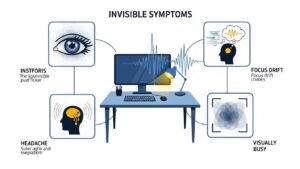
Flicker is often “invisible”—you don’t see a strobe, you feel it as dry/burning eyes, a jittery “busy” room vibe, headaches, or focus drift.
The cleanest fix is usually not “brighter,” but steady light + fewer mismatched light sources.
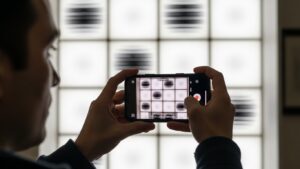
- Fastest test: record the lit wall in slow-mo (120/240fps). Rolling dark bands = likely flicker.
- Most common trigger: PWM dimming (pulsing) at low brightness + cheap LED drivers.
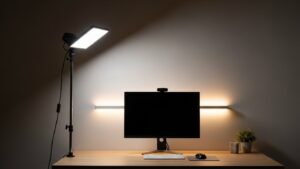
- Best “no-guess” fix: use one reliable, flicker-free key light, keep it in a stable range, then add gentle ambient fill.
- Reality rule: if your eyes feel “sandpaper” by 2–3 PM, don’t blame willpower—audit the light.
- Headache/nausea that starts quickly (minutes, not hours) after sitting at your desk
- Dizziness, unusual light sensitivity, or symptoms that persist even after you change lighting
- New visual disturbances, severe eye pain, or worsening symptoms week to week
Simplify the environment (stable light, fewer sources, lower contrast). This guide is informational and not medical advice—persistent or severe symptoms deserve a professional evaluation.
Last Updated: 2026-01-15 |
Expert Review: WorkNest Ergonomic Lab |
Author: WorkNest Team
- Stop living at 10% brightness: move your desk lamp to a stable mid-high setting (low dim is where flicker often spikes).
- Use one main key light: don’t stack 3–4 cheap LEDs all at different dim levels.
- Run the slow-mo test: record the lit wall (not the bulb). Rolling bands/pulsing = suspect.
- Add soft ambient fill: make the room behind your monitor not “cave-dark.” (Contrast makes flicker feel worse.)
- Re-test after each change: same phone setting, same angle, so you don’t placebo yourself.
Flicker-Free Lighting sounds like an electrician problem—until you live through the pattern.
Morning feels fine, you’re flying through work… and then your eyes start doing that “tight and gritty” thing by lunch.
You dim the lamp, you lower monitor brightness, you even blame caffeine. But the room still feels weirdly busy.
That “busy room” feeling is what a lot of people experience with invisible flicker.
Not a nightclub strobe—more like your lighting never fully settles. If you do screen work, your eyes are already working hard.
Add unstable light and your visual system has to fight on two fronts.
This guide is built for real setups: desk lamps, overhead LEDs, dimmers, rentals you can’t rewire, and the way video calls amplify everything.
You’ll get a fast test, a fix protocol, and a buyer checklist that actually holds up in messy reality.
Table of Contents
- 1) What flicker really feels like (even when you can’t “see” it)
- 2) The 60-second flicker audit: slow-mo + shadow wave
- 3) Why LEDs flicker: PWM vs CCR, drivers, and dimmers
- 4) Fix protocol (no guesswork): stabilize, simplify, then upgrade
- 5) Buyer checklist: what “flicker-free” should mean in practice
- 6) Comparison table: stable setup vs flicker-prone setup signals
- 7) Common mistakes (the ones that keep people stuck)
- FAQ
- Internal Links
- Sources & References
- Professional Disclaimer
1) What flicker really feels like (even when you can’t “see” it)
Here’s the trap: people imagine flicker as an obvious on/off blink.
But a lot of LED flicker shows up as high-speed pulsing that your brain processes even when your conscious mind shrugs and says “looks normal.”
In desk work, flicker usually feels like visual noise—your eyes can’t relax into a steady scene.
And once you’re doing screen work, that subtle instability gets louder.
- Fast fatigue curve: you feel “fine” at first, then discomfort ramps earlier than it should.
- Busy-room vibe: the space feels jittery or agitating, especially under dimmed LEDs.
- Focus drift: rereading lines, losing your place, or feeling oddly impatient.
- Head/neck behaviors: micro-leaning toward the screen (your body tries to “lock onto” clarity).
- Video calls amplify it: face light + monitor + overhead LEDs = multiple unstable sources stacked.
Your eyes already do constant micro-adjustments during screen work (refocus, contrast adaptation, blink changes).
Flicker adds a second invisible workload. The result often feels like “I’m tired for no reason.”
2) The 60-second flicker audit: slow-mo + shadow wave
You don’t need special gear to catch most problematic flicker. Use two quick tests back-to-back.
The key is to test the lit wall or desk surface, not the bulb itself.
- Open Slow-Mo mode (120fps or 240fps if available).
- Point at a neutral wall illuminated by the lamp (or your desk surface).
- Look for rolling dark bands or obvious pulsing.
- Test at 100%, then 50%, then the lowest dim setting (low dim is the usual danger zone).
- Hold a pen or your fingers between the lamp and the wall.
- Wiggle it side-to-side fairly quickly.
- Stable light: one smooth blur.
- Flicker-prone light: “stepping,” multiple edges, or a stop-motion look.
Different phones show bands differently because of camera shutter behavior.
Don’t obsess over perfection—compare your own lamp at 100% vs 10%. If it turns into a zebra at low dim, that’s actionable.
3) Why LEDs flicker: PWM vs CCR, drivers, and dimmers
Most flicker problems come from how power is delivered, not from the LED “chip” itself.
LEDs don’t fade like old incandescent filaments—they respond fast. That means the driver and dimming method matter a lot.
- PWM (Pulse Width Modulation): the light rapidly turns ON/OFF. Lower brightness = longer OFF time. Many people feel this as fatigue at low dim.
- CCR (Constant Current Reduction): the driver smoothly lowers current while staying “on.” Often more comfortable, especially for long desk sessions.
Then there’s the real-world chaos: incompatible dimmers.
Many wall dimmers were built for older bulbs. Some LED bulbs react badly and start flickering or buzzing—especially when warm.
- Cheap driver: poor smoothing = unstable output (flicker can worsen as the lamp heats up).
- Touch dimmers: often fine at 100%, messy at low settings.
- Smart bulbs + wall dimmer: two “brains” fighting each other = unstable light and shorter bulb life.
- Don’t forget the monitor: some displays also use PWM for backlight at low brightness, stacking stress with the room.
“Warm light” and “eye-care mode” do not automatically mean flicker-free. Color and flicker are separate. A cozy warm bulb can still pulse like crazy.
4) Fix protocol (no guesswork): stabilize, simplify, then upgrade
The goal is not maximum brightness. The goal is stable comfort.
Follow this sequence so you don’t “fix flicker” but accidentally create harsh glare or a cave-dark contrast trap.
-
Step 1 — Freeze the dimmer:
If your lamp flickers at low dim, stop living there. Set it to a stable mid-high setting.
If it becomes too bright, create comfort with distance or diffusion (aim at wall/ceiling), not with aggressive dimming. -
Step 2 — Simplify the scene:
Turn off extra “random” LEDs (decor strips, tiny lamps, cheap ring lights) and run one key light.
A single stable light beats three unstable ones—even if the room looks “cool.” -
Step 3 — Add an ambient buffer:
Make the wall behind your monitor visible. A small floor lamp or ceiling bounce reduces contrast and makes flicker feel less aggressive. -
Step 4 — Swap the weak link:
If flicker appears only when dimming, the culprit is usually the bulb/driver/dimmer combination.
Replace one component at a time (start with the bulb or the lamp if it’s an integrated LED). -
Step 5 — Verify (don’t guess):
Re-run the same slow-mo test at the same angles and settings. Your eyes will thank you for being boringly scientific here.
Flicker troubleshooting gets messy when you change three things at once. Swap one variable (bulb OR lamp OR dimmer), test, then move on.
That’s how you avoid chasing ghosts.
5) Buyer checklist: what “flicker-free” should mean in practice
“Flicker-free” marketing can be sloppy. Treat labels as a starting point, not proof.
What you want is a product that stays stable at the brightness levels you actually use at your desk.
- Stable at low dim: ask “Does it stay stable at 20–30%?” (Many fail here.)
- Driver quality: a good lamp often feels boringly steady on slow-mo across settings.
- LED-rated dimmer compatibility: if using a wall dimmer, confirm it’s designed for LEDs.
- Avoid weird stacking: don’t mix a cheap ring light + dimmed overhead + desk lamp all at once.
- Still test it: your phone slow-mo test is the final judge in your actual room.
If you want one “normal person” buying rule: prioritize a stable desk lamp first.
Overhead lighting is harder to control (especially in rentals). Your desk lamp is your controllable anchor.
6) Comparison table: stable setup vs flicker-prone setup signals
| Signal | Flicker-prone setup | More stable setup |
|---|---|---|
| Slow-mo wall test | rolling bands / pulsing that worsens at low dim | minimal or no bands across your usable range |
| Dimmer behavior | buzzing, flicker, or “unstable” feel below ~30% | predictable brightness with no buzzing in normal use |
| Eye comfort curve | fine at 9 AM → gritty/tense by early afternoon | comfort stays consistent through the workday |
| Room feel | “busy,” visually loud, hard to relax focus | calm baseline; you stop thinking about lighting |
| Video calls | fatigue ramps faster, headaches show up sooner | stable scene; less squinting and fewer micro-leans |
7) Common mistakes (the ones that keep people stuck)
- Living at the lowest dim setting: it feels cozy, but many LEDs behave worst there.
- Mixing too many light sources: multiple cheap LEDs at different dim levels creates a “frequency soup.”
- Blaming the monitor first: fix the room baseline so you’re not fighting screen + lighting at once.
- Using smart bulbs on wall dimmers: unstable light plus shorter bulb life—double loss.
- Chasing lumens instead of stability: stable light at a reasonable level beats bright pulsing light every time.
After a normal workday, do you feel like you need a dark room to recover?
That’s a clue your environment is visually taxing—often contrast + flicker + glare working together.

FAQ
Q1) Are all LED lights bad for my eyes?
A) No. Many LEDs are great. The problem is usually driver quality and dimming behavior. Test your actual lamp at your actual dim level.
Q2) Why does flicker feel worse when I dim lights?
A) Many LEDs dim using PWM. Lower brightness often means longer “OFF” time per cycle, which can increase the stroboscopic effect—even if you don’t consciously see it.
Q3) Can my monitor be part of the flicker problem?
A) Yes. Some monitors use PWM for their backlight at low brightness. If you suspect it, keep monitor brightness above the lowest range and stabilize room lighting so the monitor isn’t a spotlight in darkness.
Q4) Is sunlight flicker-free?
A) Yes. If you feel strain near a window, it’s usually glare or excess contrast, not flicker. Manage blinds and add soft indoor ambient to balance the scene.
Q5) Do blue-light glasses fix flicker fatigue?
A) Usually not. Glasses can shift color, but flicker is about pulsing. If your light is strobing, filtering “blue” doesn’t make the pulsing disappear.
Q6) What’s the fastest fix if I can’t buy anything today?
A) Stop extreme dimming, use one key light at a stable mid-high setting, add gentle ambient fill, and rerun the slow-mo test. Then decide what to replace with evidence.
Internal Links
Home Office Lighting Setup: Best Lighting Practices to Reduce Eye Strain
Blue Light vs Warm Light: Best Lighting for Productivity in Home Office
LED Desk Lamp Guide: Color Temperature and Productivity
Sources & References
- OSHA — Computer Workstations eTool: Workstation Environment (lighting & glare)
- HSE — Working with Display Screen Equipment (DSE) (PDF)
- IEEE — 1789-2015 Recommended Practices (LED modulation/flicker)
- CDC/NIOSH — Ergonomics (work environment basics)
Professional Disclaimer
If you experience severe or persistent symptoms (headaches, dizziness, unusual light sensitivity), consult a qualified professional.
Update Log:
– 2026-01-15: Rebuilt the flicker audit + fix protocol for real desk setups, added a buyer checklist, expanded PWM/driver/dimmer explanations, and improved troubleshooting decision flow.

I’m not a medical professional, ergonomist, or workplace specialist.WorkNest exists to help everyday people build more comfortable, practical home office environments through clear explanations, visual guides, and common-sense adjustments.
Articles on this site are written from a non-expert perspective, focusing on real-world use, everyday discomforts, and widely accepted setup principles rather than clinical or professional advice.