Dual Monitor Setup Guide: Height, Distance, and Rotation Rules for Comfortable Work
Last Updated: 2025-12-13
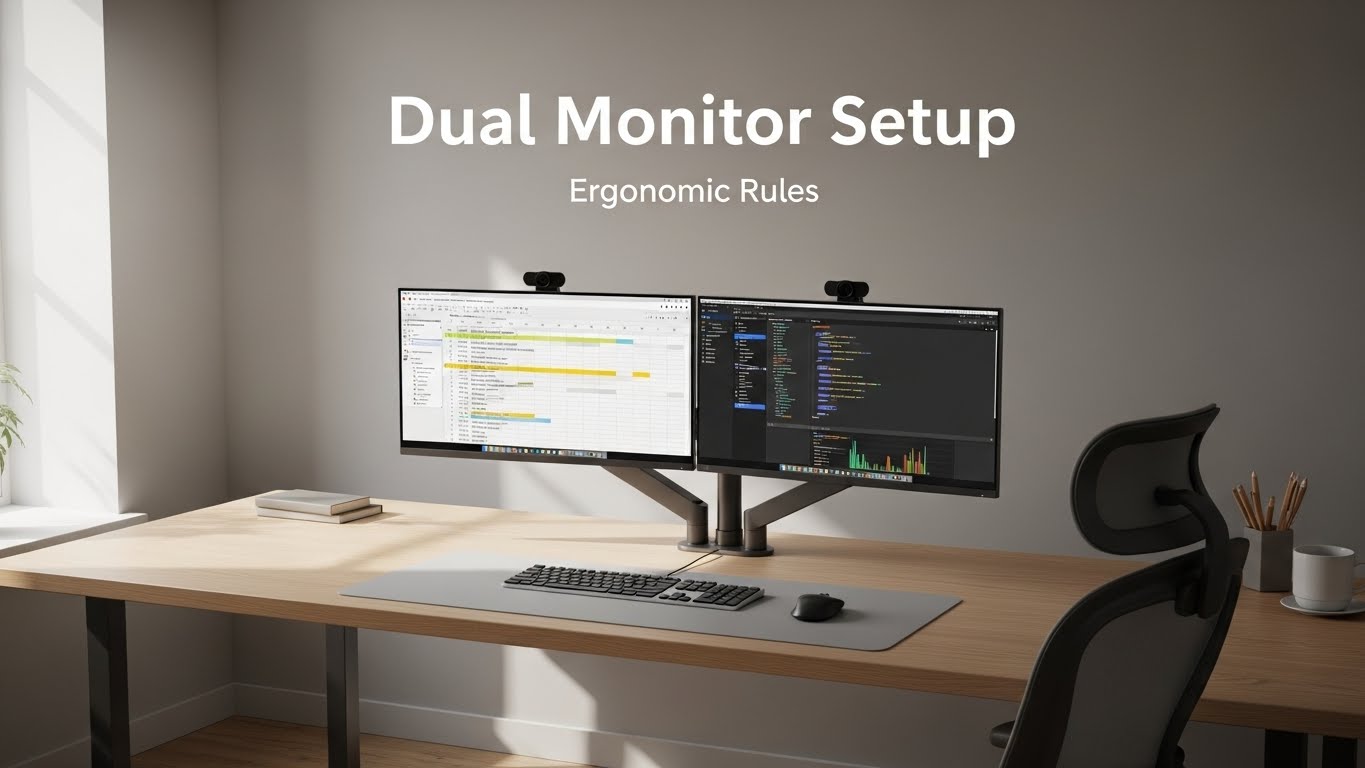
Dual monitor setup guide principles are essential if you work with multiple windows, spreadsheets, or creative tools all day. A dual monitor setup can boost productivity, but when the screens are positioned incorrectly—too high, too far, or at awkward angles—it quickly creates neck tension, shoulder strain, and eye fatigue. This complete dual monitor setup guide explains how to set height, distance, and rotation so your screens work with your body, not against it.
Table of Contents
- Why Dual Monitor Setup Matters for Comfort and Productivity
- Defining Primary and Secondary Monitor Roles
- Correct Dual Monitor Height
- Recommended Distance for Dual Monitors
- Rotation & Inward Angle Rules
- Common Dual Monitor Layouts (Side-by-Side, Stacked, Vertical)
- Chair Position and Body Alignment with Two Screens
- Troubleshooting Common Dual Monitor Problems
- Quick Dual Monitor Checklist
- FAQ
- Internal Links
- Disclaimer
- Sources & Transparency
- Author
Why Dual Monitor Setup Matters for Comfort and Productivity
A dual monitor setup can reduce window switching and make complex tasks easier, but it also increases the risk of twisting your neck or rotating your torso if the monitors are not aligned correctly. Unlike a single screen, dual monitors create two visual anchors, and your body will unconsciously follow them. A good dual monitor setup guide focuses on keeping your head and torso centered, minimizing rotation, and sharing visual load evenly between both screens.
Defining Primary and Secondary Monitor Roles
Before adjusting height and distance, decide which screen is your primary monitor—where you spend most of your focused time—and which is the secondary monitor for reference content, chat, or email. This affects every part of your dual monitor setup:
- Place the primary monitor directly in front of you.
- Position the secondary monitor to the side, angled inward.
- Match the top edges of both monitors at the same height.
Correct Dual Monitor Height
The height rules in a dual monitor setup guide are similar to single-monitor ergonomics but must stay consistent across both screens. Follow these principles:
- Align the top edge of both monitors at or slightly below eye level.
- Keep your eyes naturally landing in the top third of the primary monitor.
- If you use bifocals, lower both screens slightly.
Uneven heights cause subtle neck rotation or tilt, which adds up over long workdays.
Recommended Distance for Dual Monitors
Distance is a key part of every dual monitor setup guide. Most ergonomic recommendations for monitor viewing distance sit between 50 and 75 cm depending on screen size and resolution. For dual monitors:
- Keep both monitors at roughly the same distance from your eyes.
- If the screens are large (27–32 inches), use the 60–75 cm range.
- A slight curve or inward angle lets you view both screens without leaning.
Rotation & Inward Angle Rules
Rotation is what makes dual monitor ergonomics different from a single-screen setup. Without proper angles, you end up turning your head frequently throughout the day. A balanced dual monitor setup guide applies these rules:
- Center the primary monitor directly in front of your torso.
- Angle the secondary monitor inward by about 15–30°.
- Keep the inner edges of both monitors close together to reduce eye travel.
If both screens are used equally, you can center the gap between them directly in front of you and angle both inward slightly.
Common Dual Monitor Layouts (Side-by-Side, Stacked, Vertical)
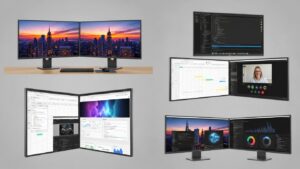
Not all dual monitor setups are side-by-side. This dual monitor setup guide covers three common layouts and when to use them.
• Classic side-by-side layout
The most common arrangement. Best when both monitors have similar size and resolution, and you drag windows between them frequently.
• Stacked layout (one above the other)
Useful in tight desk spaces or when you want a main screen and a secondary monitoring screen. Make sure the upper screen is not too high; otherwise, it encourages neck extension.
• Vertical monitor + horizontal monitor
Excellent for coding, reading documents, or reference-heavy work. Keep the vertical monitor on the non-dominant side and use it as a secondary screen.
Chair Position and Body Alignment with Two Screens
Even a perfect dual monitor setup falls apart if you sit angled toward only one screen. Remember:
- Keep your chair centered on the primary monitor.
- Align your keyboard and mouse with the primary screen.
- Rotate your whole torso—rather than only your neck—when you need to focus on the secondary monitor.
This reduces the risk of one-sided neck and shoulder tension.
Troubleshooting Common Dual Monitor Problems
• Neck pain on one side
Your primary monitor may be off-center. Align it directly with your torso, and reduce the angle to the secondary monitor if it forces too much rotation.
• Eye strain when switching between screens
Check brightness, distance, and text scaling. Both monitors should have similar brightness levels and size scaling for text.
• Feeling “pulled” toward one side of the desk
Your keyboard and mouse may be aligned with the secondary screen instead of the primary. Recenter them under your main monitor.
• Difficulty keeping windows organized
Use built-in window snapping tools or third-party apps to quickly arrange windows on each monitor.
Quick Dual Monitor Setup Checklist
- Primary monitor centered in front of you
- Secondary monitor angled inward 15–30°
- Top edges of both monitors at or slightly below eye level
- Equal distance (50–75 cm) from your eyes
- Keyboard and mouse aligned with primary monitor
FAQ
1. Should both monitors be the same size in a dual monitor setup?
Not required, but similar sizes make window management easier and reduce visual strain.
2. Is it okay if the secondary monitor is slightly lower?
A small difference is fine, but large height gaps can cause neck bending and should be minimized.
3. Is a curved monitor better than dual monitors?
Curved ultrawide monitors can replace a dual monitor setup, but many people still prefer two separate screens for flexibility.
4. Can I use a laptop as a second monitor?
Yes, but raise it on a stand so its screen height matches the primary monitor as closely as possible.
5. How far apart should dual monitors be?
Keep the inner edges close together, forming a slight arc around your natural viewing position.
Internal Links
- Monitor Distance and Eye-Level Setup Guide
- Laptop Stand Height Guide
- Desk Height by Body Height Setup
Disclaimer
This dual monitor setup guide provides general ergonomic recommendations for workstation comfort. It does not constitute medical or clinical advice.
Sources & Transparency
Author
Home Office Setup Project — Evidence-Informed Ergonomics & Productivity Guidance

I’m not a medical professional, ergonomist, or workplace specialist.WorkNest exists to help everyday people build more comfortable, practical home office environments through clear explanations, visual guides, and common-sense adjustments.
Articles on this site are written from a non-expert perspective, focusing on real-world use, everyday discomforts, and widely accepted setup principles rather than clinical or professional advice.