Air Dryness at Your Desk: Humidity Range, Eye Comfort, and Simple Fixes
Why does my desk area feel “dry” and irritating even when the rest of the room seems fine?
Because your desk can turn into a microclimate—a tiny “micro-desert” created by (1) low or unstable humidity,
(2) airflow crossing your face (HVAC vent, fan, purifier), and (3) reduced blinking during screen focus.
The most reliable fix is not “more humidity everywhere.” It’s a 30–50% comfort band + off-axis airflow + a
simple measurement routine so you stop guessing.
- The stealth culprit: a vent or fan that “barely” points at the monitor can act like an eye-dryer all day.
- The sweet spot: aim for 30–50% RH for most home offices—comfortable without turning your room swampy.
- The pro move: redirect airflow past you (cross-breeze) using a 30–60° side angle or a vent deflector.
- The fast relief habit: fix “stare-lock” with short blink resets when you pause (not while you’re typing).
Dry air is common, but severe symptoms aren’t something to “optimize” with gadgets. Get professional help if you notice:
- Stabbing eye pain that makes screen focus impossible
- Sudden blurry/cloudy vision that doesn’t clear after rest
- Strong redness/swelling or a “something stuck in my eye” feeling
- Light sensitivity that forces you to squint or avoid normal lighting
This guide is informational (environment + ergonomics), not medical advice. If red flags show up, prioritize evaluation over setup tweaks.
Last Updated: 2026-01-16 |
Expert Review: WorkNest Ergonomic Lab |
Author: WorkNest Team
- Kill the face-blast: if any airflow crosses your eyes (vent/fan/purifier), rotate it 30–60° off-axis so air passes by you.
- Measure once, stop guessing: put a small hygrometer next to your monitor. If you’re <30% RH for hours, add gentle humidity.
- Run the proof test: do 20 minutes of normal work. If you stop rubbing your eyes and your face feels “neutral,” you fixed the real lever.
Here’s the part that messes with your head: the room can feel totally normal… yet your desk feels like airplane cabin air.
I had that exact winter where every afternoon turned into “why do my eyes feel gritty?” panic.
I tried brightness tweaks, blue-light settings, even drinking more water. Nothing stuck.
The turning point was embarrassingly simple: I put a cheap humidity sensor on the desk, not across the room.
The number was low enough to explain everything—but the bigger “aha” was airflow.
My vent wasn’t blasting my whole body. It was threading a small stream right across my monitor edge into my face.
That tiny stream was enough to dry me out for hours.
This article gives you the high-leverage fix: control the desk microclimate, not the whole house.
You’ll map airflow, pick a realistic humidity band, and stabilize comfort without turning your office into a fog machine.
Table of Contents
- 1) What “desk dryness” really is (The Triangle of Irritation)
- 2) The comfort humidity range: why 30–50% is the sweet spot
- 3) Airflow mapping: finding the “silent eye-dryers” fast
- 4) Step-by-step fix protocol: no-cost → low-cost → stable
- 5) Comparison table: what you’ll notice before vs after
- FAQ
- Recommended Reading
- Sources & References
- Professional Disclaimer
1) What “desk dryness” really is (The Triangle of Irritation)
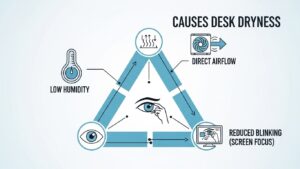
Desk dryness usually isn’t one thing. It’s a stack. I call it the Triangle of Irritation:
- Low or unstable humidity: when RH drops, moisture evaporates faster from skin and the eye’s tear film.
- Airflow across your eyes: even “gentle” air speeds evaporation—especially if it hits your face at monitor height.
- Focus stare: during screen concentration, many people blink less (or blink incompletely), so the eye surface stays exposed longer.
If your discomfort ramps up after 60–180 minutes (not instantly), that’s a clue it’s a microclimate + blinking issue—not “the air in the whole house.”
2) The comfort humidity range: why 30–50% is the sweet spot
A lot of people overcorrect: they feel dry, buy a humidifier, crank it, and end up with condensation on windows and heavy, musty air.
Comfort isn’t “as humid as possible.” It’s stable, moderate humidity that reduces evaporation without creating new problems.
- <20% RH: “desert” territory — dryness, static, tight skin, scratchy eyes tend to spike.
- 30–45% RH: the comfort zone for many workspaces — crisp air, fewer dry-eye moments.
- 50–60% RH: can be okay, but watch for window fogging and “heavy” feeling.
- >60% RH: higher risk for condensation and indoor moisture issues in some homes.
Heated indoor air can hold more moisture. When you heat cold outdoor air, the relative humidity often falls—so your face feels dry even if you didn’t change anything.
The upgrade move is tiny: place a hygrometer at desk height, near your monitor.
Readings across the room can be misleading because your vent stream and your body heat create a different zone at the desk.
3) Airflow mapping: finding the “silent eye-dryers” fast
This is the “secret” that makes people feel fixed in a day: airflow doesn’t have to feel strong to dry your eyes.
A small stream that brushes the corner of your face for hours is enough.
Grab a tissue strip (or light thread). Sit in your normal posture and test three spots:
- Cheek level (where your face sits)
- Monitor edge level (air bouncing off the screen)
- Keyboard level (air streaming upward)
- Moves steadily toward your face: you have an “eye-stream” (top priority to fix).
- Jitters: turbulence (still drying over time, but easier to tame).
- Almost still: you’ve reached “silent air” at the desk—ideal for long sessions.
Vent fix: don’t close vents (it can unbalance HVAC). Use a simple vent deflector so air goes away from your face.
Fan fix: keep it low and off-axis. Aim across your torso (cross-breeze) instead of at the screen.
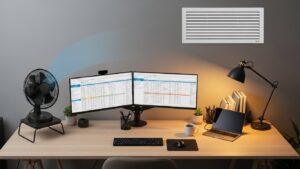
4) Step-by-step fix protocol: no-cost → low-cost → stable
Don’t start with expensive gear. Start with leverage. In most setups, Step 1 and Step 2 solve the majority of the problem.
-
Step 1 — Redirect airflow (Cost: $0)
Rotate the fan so it blows past you, not into you. If your vent hits your desk lane, use a deflector or shift the desk/monitor a few inches so the stream misses your face. -
Step 2 — Fix “stare-lock” with tiny blink resets (Cost: $0)
Don’t try to blink constantly. Do it at natural breaks: after sending an email, finishing a paragraph, or ending a call segment.
Try 3–5 deliberate blinks, then relax your shoulders and look far away for 5 seconds. -
Step 3 — Add passive humidity (Cost: $0–5)
If you’re desperate, a bowl of water near a heat source can add a small boost. It’s not a miracle, but it can smooth out the worst dips. -
Step 4 — Add a small humidifier (Cost: $20–40)
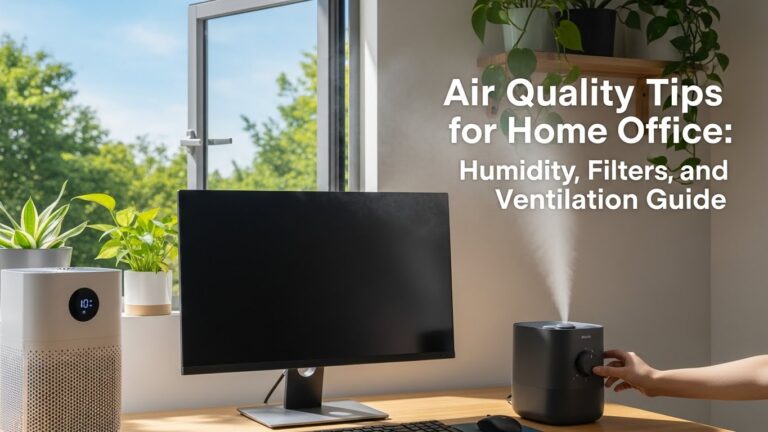
Use gentle output. Place it 2–4 feet away from electronics and avoid aiming mist toward screens/keyboard.
If you notice white dust, consider distilled water and regular cleaning. -
Step 5 — Stabilize with a hygrometer rule (Cost: ~$10)
Keep the sensor near the monitor. If it stays under 30% for long stretches, run the humidifier. If windows fog or air feels heavy, pull back.
Airflow direction first, humidity second.
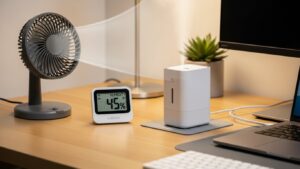
5) Comparison table: what you’ll notice before vs after
The best signal isn’t the number on a device—it’s how you feel at hour 3. Use this to check if your fix is real.
| Checkpoint | Desk is too dry / unstable 😫 | Desk is stable / comfortable 😎 |
|---|---|---|
| Eye feel | scratchy, burning, “gritty” by mid-day | neutral eyes; you forget about them |
| Brightness sensitivity | screen feels harsh even when dim | brightness feels consistent |
| Face & throat | tight skin, dry throat, mouth breathing | steady comfort, easier breathing |
| Airflow awareness | you feel a stream on cheeks/eyes | airflow is off-axis; cools body, not eyes |
| Daily pattern | fine early → irritation ramps by afternoon | comfort holds through long sessions |
FAQ: common humidity and desk dryness questions
Q1) Can I just use eye drops instead of fixing humidity?
A) Drops can help temporarily, but if the desk microclimate is the driver (low RH + airflow + staring), you’ll keep needing them.
Fix the environment first; treat drops as backup.
Q2) Is a tiny USB humidifier enough for a desk?
A) Often yes for the desk zone—especially in winter. The key is gentle output and safe placement (not misting electronics).
Clean it regularly to avoid issues.
Q3) Why do my eyes feel drier when I’m focused?
A) Many people blink less or blink incompletely during screen concentration. Add airflow and low humidity, and irritation builds quietly over time.
Q4) What’s “too humid” for comfort?
A) If the room feels heavy, windows fog, or you notice condensation patterns, humidity may be too high. Pull back and aim for a stable mid-range.
Q5) Can plants help desk humidity?
A) Plants can add modest moisture through transpiration and may stabilize the baseline. They’re supportive, but in very dry heating season you’ll still want airflow control and measurement.
Recommended Reading
- The Invisible Focus Killer: Managing CO₂ and Air Quality at Your Desk
- The Productivity Temperature: Why Being Too Hot or Cold Ruins Your Output
- Quiet Cooling: How to Use Desk Fans Without the Noise and Dryness
Sources & References
- OSHA — Indoor Air Quality (IAQ) Overview
- OSHA — Temperature/Humidity Guidance (Standard Interpretation)
- Mayo Clinic — Dry Eyes: Symptoms & Causes
Professional Disclaimer
If you have persistent eye pain, sudden vision changes, significant redness, or worsening symptoms, consult a qualified professional.
Update Log:
– 2026-01-16: Rebuilt the guide around a desk microclimate model (humidity + airflow + blink behavior), added the Tissue Strip Audit, clarified safe humidifier placement, and expanded the stability checklist for long work sessions.

I’m not a medical professional, ergonomist, or workplace specialist.WorkNest exists to help everyday people build more comfortable, practical home office environments through clear explanations, visual guides, and common-sense adjustments.
Articles on this site are written from a non-expert perspective, focusing on real-world use, everyday discomforts, and widely accepted setup principles rather than clinical or professional advice.