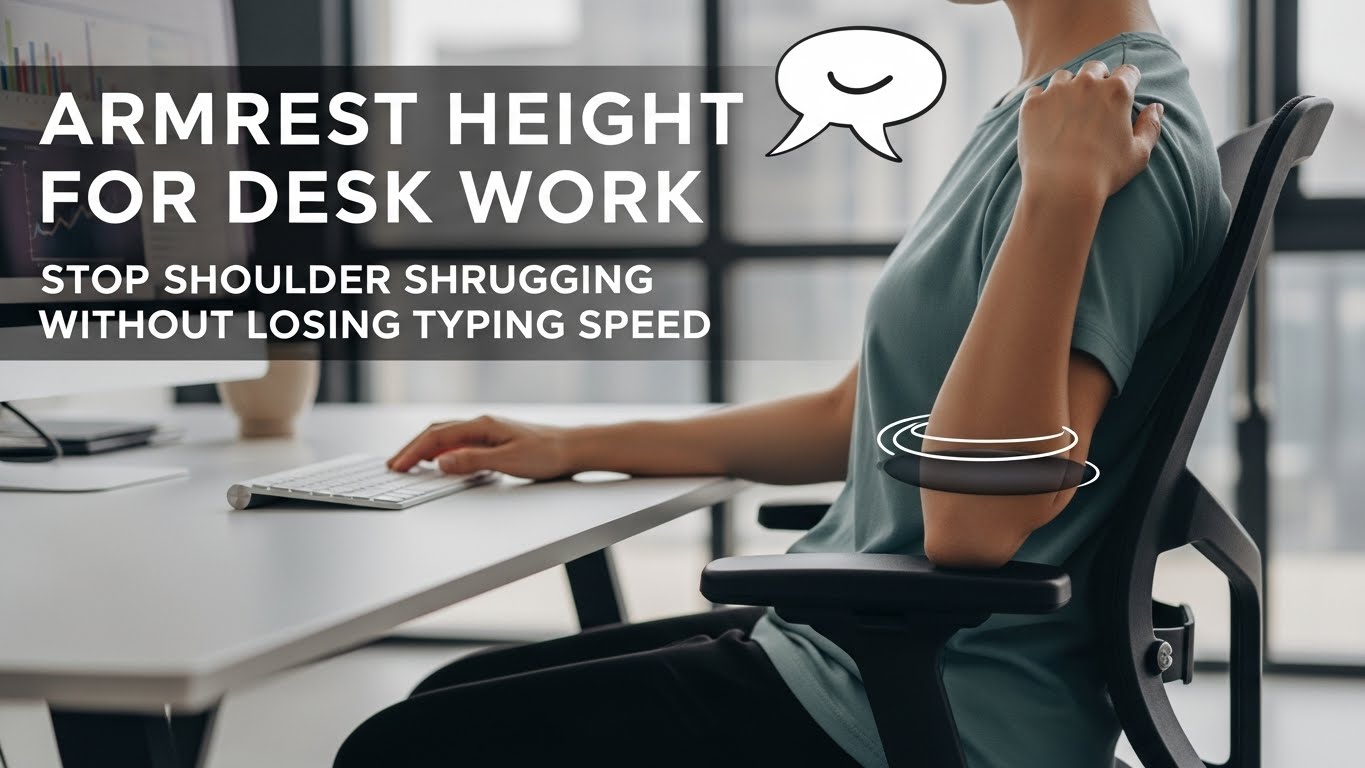
Armrest Height for Desk Work: Stop Shoulder Shrugging Without Losing Typing Speed
The “right” armrest height is the one that makes your shoulders feel weightless—while your wrists stay neutral during real typing.
Armrest height for desk work is “right” when your shoulders stay down (no creeping shrug),
your elbows feel lightly supported (not pushed up), and you can still type and mouse with a quiet wrist
(no bend up/down, no sideways twist).
- Best default: forearms touch the armrests lightly, and your shoulders feel like they “drop” on an exhale.
- Too high feels like: an invisible shrug + neck tightness + mouse hand “floating.”
- Too low feels like: arms hanging heavy + reaching forward + forearm fatigue by afternoon.
- Fastest win: move the mouse closer first, then fine-tune armrest height to match your keyboard/desk plane.
- Persistent numbness/tingling in fingers or hand, especially if it’s worsening at night.
- Weak grip, dropping objects, or noticeable clumsiness (buttons, zippers, phone grip).
- Sharp pain shooting from neck/shoulder down the arm, or symptoms that spread quickly.
This guide is for ergonomic education and setup tuning. If you’re getting nerve-type symptoms or functional loss, consider a qualified clinician or professional workstation assessment.
Last Updated: January 12, 2026
| Expert Review: WorkNest Ergonomic Lab (desk-work mechanics)
| Scope: YMYL-safe, non-medical education
- Shoulder dump: sit all the way back, exhale, and let shoulders fall away from your ears.
- Start low: drop armrests to the lowest setting.
- Raise to “barely supportive”: lift armrests until they just meet your forearms—no shoulder lift allowed.
- 20-second typing test: type normally; wrists should feel light and neutral (not bent up/down).
- 20-second mouse test: move the mouse; elbow stays close to your side—no reaching.
Here’s the annoying part: armrests can feel “fine” for the first hour. Then it hits around mid-afternoon—
that hot, tight spot between your neck and shoulder. You roll your shoulders, you stretch, you blame stress…
and five minutes later you’re shrugging again.
In a lot of desk setups, the real culprit is simpler: the chair is quietly asking your body to hold your arms in space.
When your armrests are even a little off, you pay a posture tax in tiny installments—shrug, reach, wrist angle—over and over.
The fix isn’t “perfect posture.” It’s getting your shoulders out of the job entirely.
Table of Contents
- 1) Why armrest height changes shoulders (the “lift vs hang” effect)
- 2) The real target: stable elbows + neutral wrists (not “perfect posture”)
- 3) Find your height in 3 steps (plus two traps that fool smart people)
- 4) Tune it for your work style: typing-heavy vs mouse-heavy vs calls
- 5) Good vs bad signals table (what you’ll feel during real work)
- FAQ
- Internal Links
- Sources & References
- Professional Disclaimer
1) Why armrest height changes shoulders (the “lift vs hang” effect)
Your shoulders basically want one job at your desk: stay quiet. But armrests can accidentally recruit them into a 9-hour shift.
When the height is off, your body ends up choosing between two bad options:
- The High Shrug (over-support): armrests push your forearms up, and your shoulders “follow” upward. It’s subtle at first—then your neck feels tight and your traps never fully turn off.
- The Heavy Hang (under-support): armrests are too low (or unused), so your arms feel heavy and you start reaching forward. That reach pulls your shoulder blades and makes your neck work harder to stabilize your head while your hands do fine motor work.
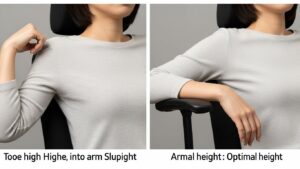
Do one slow exhale. If your shoulders drop and you immediately feel “lighter,” your setup is probably making your traps work. Your goal is to keep that exhale-drop feeling while you type and mouse.
2) The real target: stable elbows + neutral wrists (not “perfect posture”)
Most ergonomic posters are unrealistic. Real desk work includes leaning, shortcuts, reaching for a mug, moving between keyboard and mouse.
So instead of chasing a stiff “90-degree” pose, aim for two outcomes that hold up in real life:
- Elbows feel steady (supported, not pushed up)
- Wrists stay neutral during typing and mousing (not cocked up/down)
Here’s the mistake that keeps people stuck: they “fix” shoulders by raising armrests, then accidentally force the wrists into a bend to reach the keyboard.
It can feel cushy… and still be expensive over long sessions.
The best armrest height is the one you forget about after 10 minutes—because nothing is fighting you. If you keep adjusting, something (desk height, mouse distance, chair height) is still mismatched.
3) Find your height in 3 steps (plus two traps that fool smart people)
If you only change one thing today, do it in this order. Armrest height is not step one—it’s step two.
-
Step 1 — Fix the foundation first:
sit all the way back. Feet supported. Let shoulders drop. If your chair is too low for your desk, you’ll instinctively crank armrests up and trigger shrugging. -
Step 2 — Raise to “barely supportive”:
start with armrests low, then lift them until they just meet your forearms.
If you feel your shoulders lift, drop the armrests one notch and retest. -
Step 3 — Do the “real work” test:
type and mouse for 30 seconds. If wrists bend up/down or you start reaching for the mouse, fix proximity before touching armrest height again.
High armrests can feel supported immediately—then you realize you’re typing with wrists bent and shoulders creeping up.
If you feel “cradled,” do a quick wrist check. Comfort that forces wrist bend is a trap.
A far mouse turns “support” into “reach + twist.” If your elbow drifts away from your body to mouse, bring the mouse closer first.
Armrests can’t rescue a setup that forces reaching.

4) Tune it for your work style: typing-heavy vs mouse-heavy vs calls
“Perfect” armrest height changes based on what your hands do most of the day. Use the work style that matches your real week.
- Typing-heavy (writing/coding): slightly lower armrests often help wrists stay neutral and avoid “propping” your forearms up. If your wrists bend upward to hit keys, lower the armrests a notch.
- Mouse-heavy (design/spreadsheets): mouse proximity is priority. Keep the mouse close enough that your elbow stays near your side while the forearm is supported.
- Calls-heavy: people often perch or lean forward during meetings. Make sure armrests don’t trap you or force shrugging when you sit upright again.

- Exhale and let shoulders drop.
- Slide elbows slightly back so they’re closer to your ribs.
- Bring the mouse closer (even 2–3 cm helps) and retest.
5) Good vs bad signals table (what you’ll feel during real work)
If you’re close but not perfect, change only one thing at a time—and by the smallest amount your chair allows (one notch).
Then retest with 30 seconds of typing + mousing. Big changes create new problems fast.
FAQ
Q1) Should my armrests touch the edge of my desk?
Usually, no. If armrests collide with the desk, they can trap your posture or force your shoulders up.
A little clearance is helpful so you can move naturally while keeping forearm support.
Q2) Is it okay to lower armrests all the way?
Yes—if it removes shrugging and you can still work without reaching.
Some people do best with low armrests and forearm support on the desk (especially when the desk is lower or the keyboard is thin).
Q3) My chair armrests aren’t adjustable. What should I do?
Prioritize mouse/keyboard proximity and a neutral wrist first.
If fixed armrests force shrugging, it may be better not to use them during active typing.
A soft edge protector on the desk can make forearm support more comfortable.
Q4) Why do my shoulders hurt more when I use armrests?
The common reason is armrests are too high, turning “support” into a shrug.
Drop them one notch and retest with 30 seconds of typing + mouse.
If shrugging continues, bring the mouse closer and check desk/chair height mismatch.
Q5) Should my armrests be level with my keyboard tray or desk surface?
They should feel compatible with your input height.
If armrests lift your forearms above your keyboard plane, wrists often bend upward.
If armrests are far below, you may reach and “hang” the shoulders.
Q6) Is it normal for one armrest to be slightly higher than the other?
Small asymmetry can be normal—especially if one hand is on the mouse most of the day.
Use the “shoulders down + wrists neutral” test as your judge, not perfect symmetry on the chair scale.
Internal Links
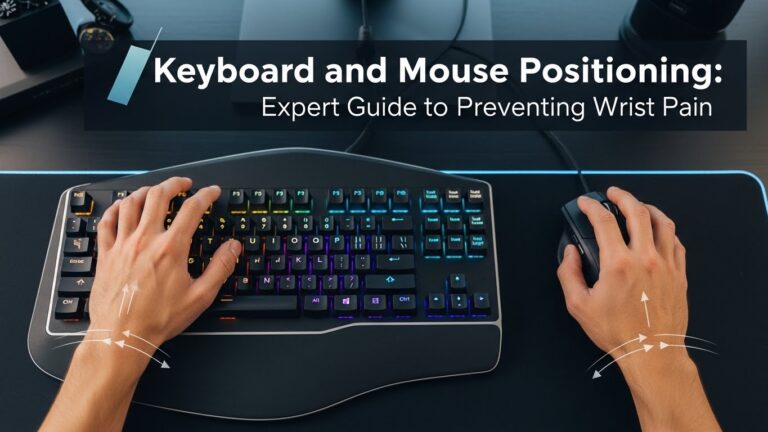
Keyboard and Mouse Positioning: Wrist Pain Prevention Guide for Long Workdays
How to Reduce Neck Pain at Your Desk: Simple Posture Fixes for Long-Hour Work
Sources & References
Professional Disclaimer
This article is for educational purposes only and does not diagnose or treat medical conditions.
Ergonomics is individual and depends on your desk, chair, body proportions, and workload.
If you have persistent pain, numbness, tingling, weakness, or worsening symptoms, consult a qualified clinician or an ergonomics professional.
2026-01-12: Published the “Weightless Shoulder” armrest protocol, expanded real-work testing (typing + mouse), added work-style tuning, and strengthened “feel-based” setup signals to confirm results during long sessions.

I’m not a medical professional, ergonomist, or workplace specialist.WorkNest exists to help everyday people build more comfortable, practical home office environments through clear explanations, visual guides, and common-sense adjustments.
Articles on this site are written from a non-expert perspective, focusing on real-world use, everyday discomforts, and widely accepted setup principles rather than clinical or professional advice.