Monitor Distance and Eye-Level Setup: Complete Guide Backed by OSHA-Informed Ergonomic Principles
Last Updated: 2025-12-07
Most people position their monitor based on convenience—not ergonomics—and this small habit creates long-term posture issues. A monitor that sits too high forces your neck backward; too low pushes your head downward; too far creates forward-head posture; and too close increases eye strain. This guide presents the most comprehensive, evidence-informed framework for setting correct monitor distance, eye-level height, viewing angle, and screen tilt for long-hour desk work. Based on widely accepted workplace ergonomics practices—including those referenced by OSHA and visual ergonomics guidelines—you’ll learn how to configure your screen for comfort, posture, and productivity.
Table of Contents
- Why Monitor Height and Distance Matter
- Correct Eye-Level Height
- Correct Monitor Viewing Distance
- Dual Monitor Alignment
- Laptop Screen Setup
- Posture Patterns Influenced by Screen Height
- Lighting, Glare, and Screen Angle
- Troubleshooting: Fixing Monitor-Related Pain
- Common Mistakes
- Quick Checklist
- FAQ
- Internal Links
- Disclaimer
- Sources & Transparency
- Author
Why Monitor Height and Distance Matter
Your monitor is the main anchor for your posture. Wherever the screen goes, your neck and spine follow. A screen positioned too low accelerates forward-head posture—a leading contributor to neck tension and shoulder tightness during desk work. A screen placed too far away leads to leaning forward, while a screen too close forces your eyes into excessive accommodation, increasing fatigue. Proper screen alignment ensures you keep a neutral spine and relaxed shoulders throughout long hours.
Correct Eye-Level Height (Primary Rule)
Visual ergonomics used across many workplace safety programs—including OSHA’s general workstation guidance—typically suggest keeping the top of the screen at or slightly below eye level. This prevents the head from tilting backward or downward. The goal is to maintain a natural gaze angle of 10–20° downward, which balances neck muscle load and reduces visual stress.
Important supporting details:
- Your eyes should naturally land at the top third of the screen.
- If using bifocals, lower the monitor by an extra 2–4 cm.
- When using a laptop, always raise it with a stand.
Correct Monitor Viewing Distance (50–75 cm Rule)
Viewing distance affects both posture and eye strain. Most ergonomic literature recommends placing the screen at a distance of 50–75 cm (20–30 inches). Larger monitors generally require the farther end of this range.
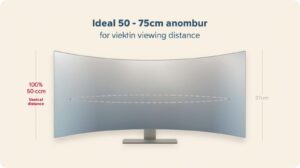
Signs your distance is wrong:
- You lean toward the screen → monitor is too far.
- Your eyes feel strained → monitor may be too close.
- Your neck cranes forward unconsciously → distance or height mismatch.
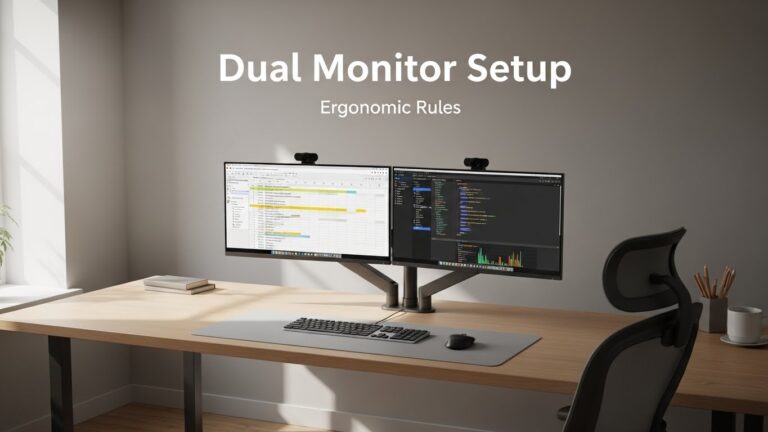
Dual Monitor Alignment (Primary vs Secondary Screen)
If you use two monitors, your body orientation becomes even more important. Here are the core rules:
- Primary monitor directly in front.
- Secondary monitor placed to the side at a slight inward angle.
- Height matched between both screens.
This prevents rotational neck strain and reduces asymmetric shoulder elevation.
Laptop Screen Setup (Most Common Problem)
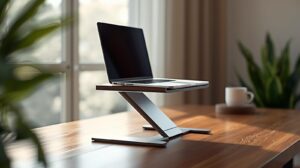
A laptop screen alone is never at the correct height. It always forces downward neck flexion. The solution is simple:
- Use a laptop stand (raise 15–25 cm).
- Connect an external keyboard and mouse.
- Match the laptop screen to the monitor eye-level rules.
How Screen Height Affects Real Posture
The monitor height directly influences your head position. Each centimeter of forward-head posture significantly increases neck load. A low monitor compounds this effect by pulling you forward. A high monitor forces your chin upward, increasing tension in the upper cervical spine.
Lighting, Glare, and Screen Angle
Glare makes you squint, lean forward, and adjust your neck frequently. To minimize glare:
- Place your desk perpendicular to windows.
- Avoid strong overhead lights directly above the monitor.
- Use a neutral-color desk lamp (3500–4500K).
- Tilt the monitor upward by 10–20°.
Troubleshooting: Fixing Monitor-Related Pain
• Neck Pain
Raise the monitor by 2–4 cm. Increase distance to 60–70 cm to minimize forward lean.
• Shoulder Tension
Your monitor may be too high. Drop it slightly and relax your shoulders before re-evaluating.
• Eye Strain
Increase distance slightly, raise brightness, or adjust screen tilt. Follow the 20-20-20 rule.
Common Mistakes
- Monitor too high → chin tilt upward.
- Monitor too low → forward-head posture.
- Laptop screen used without stand.
- Distance too close (<50 cm).
- Placing primary monitor off-center.
Quick Checklist
- Eye level = top third of screen.
- Viewing distance = 50–75 cm.
- Monitor tilt = 10–20° upward.
- Primary monitor centered.
- Laptop always raised on a stand.
FAQ
1. What is the best monitor height for posture?
The top of the screen should align with or slightly below eye level to maintain neutral neck posture.
2. How far should my monitor be?
Between 50–75 cm depending on screen size and visual comfort.
3. Should I raise my laptop?
Yes. A laptop screen alone is always too low.
4. Is eye strain always monitor distance related?
Distance is a major factor, but brightness, glare, and angle matter too.
5. What if I use two monitors?
Center the primary monitor and angle the secondary monitor inward to avoid rotational strain.
Internal Links
Disclaimer
This guide focuses on general workstation ergonomics and visual comfort. It does not provide medical or clinical advice.
Sources & Transparency
Author
Written by: Home Office Setup Project — Evidence-Informed Ergonomic Guidance
I’m not a medical professional, ergonomist, or workplace specialist.WorkNest exists to help everyday people build more comfortable, practical home office environments through clear explanations, visual guides, and common-sense adjustments.
Articles on this site are written from a non-expert perspective, focusing on real-world use, everyday discomforts, and widely accepted setup principles rather than clinical or professional advice.